
You are able to import your own playlists directly from Apple Music to create stations in SoundMachine to play at your business.
Before importing your playlist, there are some prerequisites that must be met:
- You must have a Business Premium account
- Your custom playlist must have at least 100 unique songs after importing
- There may be times that songs cannot be pulled into our system. To accommodate this we recommend aiming for at least 100 songs
- 200 songs is a good target number for customers and employees
- Songs marked as explicit will automatically be rejected by our system
- Some songs marked as clean may be matched with their explicit counterpart and rejected
- While unexpected, if you find explicit content in your station, please let us know and we can help you remove it
- There must be a balance of artists with at least 20 different artists
To import your own playlists:
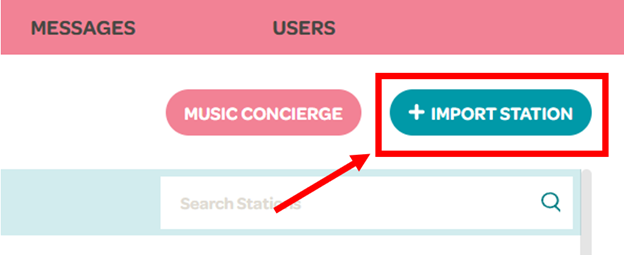
1. Click on the "Import Station" button in the Stations tab
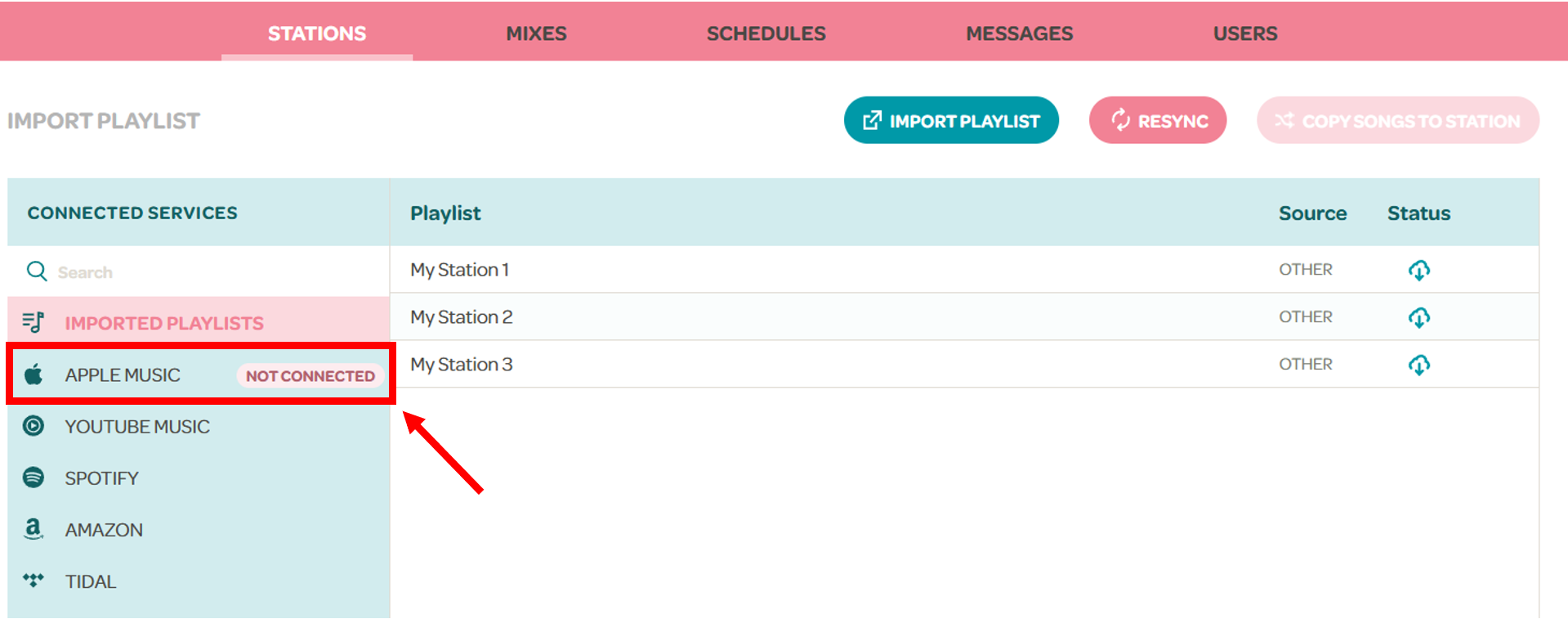
2. Click on the Apple Music tab
- If your Apple Music account is not connected, you will be prompted to enter your credentials to connect it
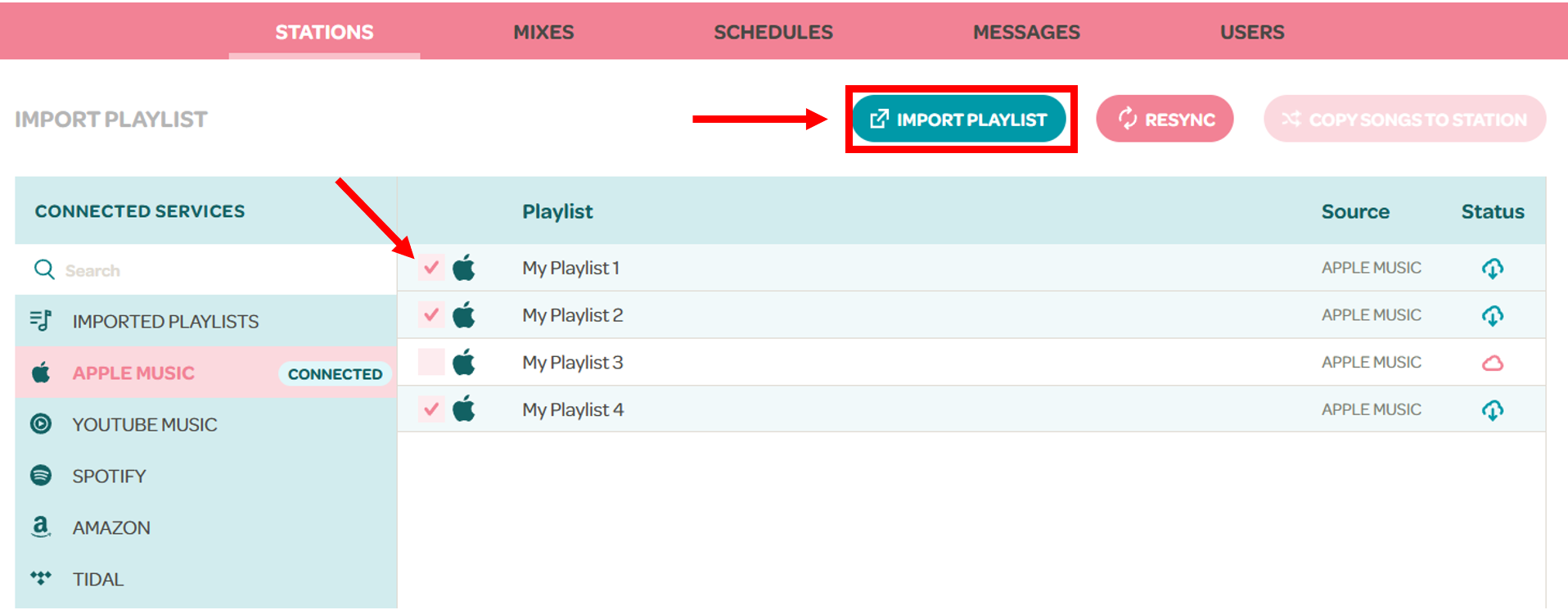
3. You will see a list of your available Apple Music playlists. Simply click the checkbox to the left of the playlists you want import and click the Import Playlist button at the top
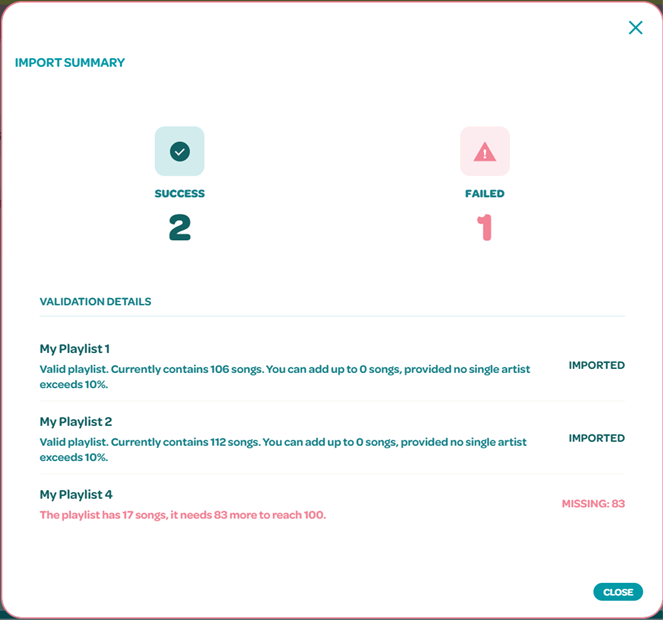
4. You will then see a summary of the playlists that were imported, or the reason it failed to be imported
You will also notice there are two other buttons beside Import Playlist: “Resync” and “Copy Songs to Station”

Resync: allows you to sync any changes made to the Apple Music playlist with the SoundMachine station, such adding or removing songs
Copy Songs to Station: allows you to add the songs of the Apple Music playlist you have selected to another one of your imported station (even stations imported from other services). It also allows you to completely replace all the songs of another imported station with the songs of the Apple Music playlist you have selected.
Please note that the same rules for importing stations also apply here.