
What are yearly schedules?
A yearly schedule lets you program the music for your business weeks or months in advance. It is useful when you change music with the seasons or on holidays, for example a Holiday Season Schedule for December and your Regular Schedule the rest of the year.
You can add content to a yearly schedule three ways:
- Stations, the same as in a weekly schedule.
- Mixes, the same as in a weekly schedule.
- Weekly schedules, so a full weekly schedule plays on the days you choose.
Simply go to Schedules in the top menu, then click the Yearly tab.

Create a new yearly schedule
There are three ways to create a new yearly schedule:
- Click the + New Yearly Schedule button in the top right corner.
- Click the New Yearly Schedule title in the top left.
- When no yearly schedule is loaded, drag a station, mix or weekly schedule from Sources onto a day in the empty calendar.
Any of these asks you to enter a name for the schedule. Type the name and click OK.
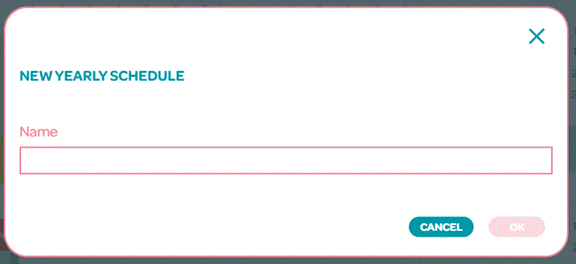
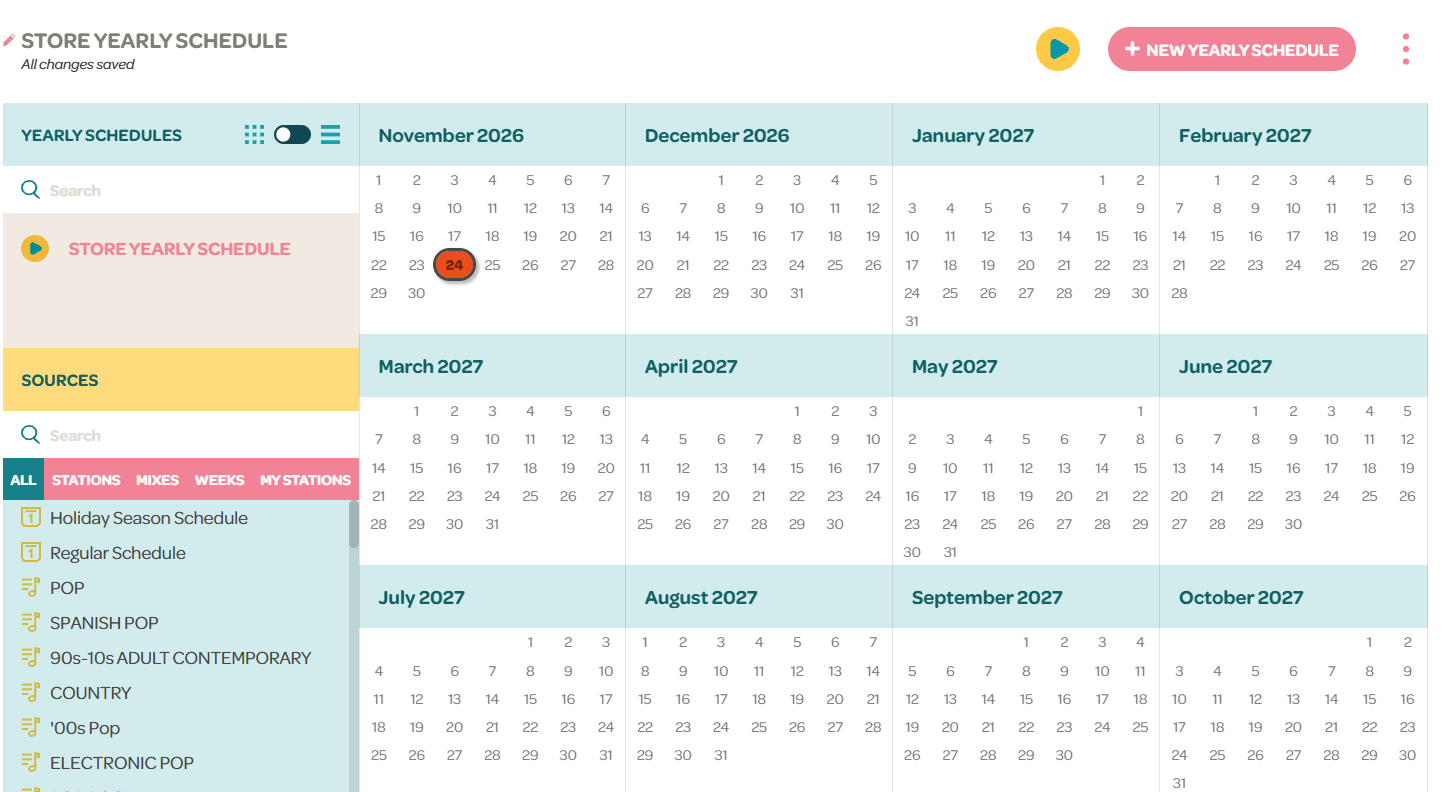
The new schedule is selected and shows an empty calendar, ready for you to add content. The Yearly Schedules list on the left shows your saved yearly schedules.
Switch between calendar view and flow view
Yearly schedules open in calendar view, which shows each month as a calendar with your date ranges colored in.
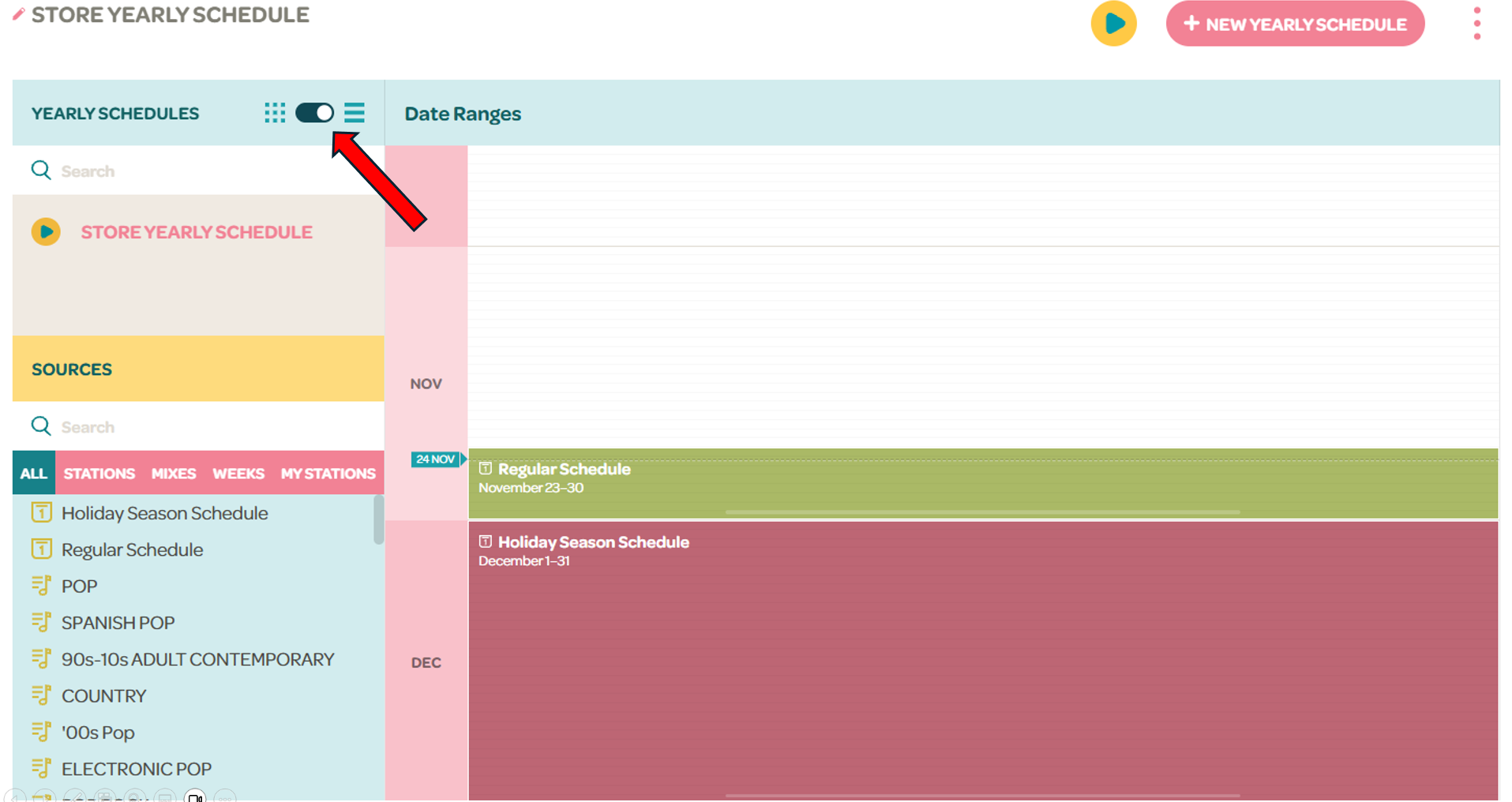
To switch to flow view, use the toggle at the top of the left panel, between Yearly Schedules and Date Ranges. Flow view lists your date ranges in order down a timeline, with each range's name and dates (for example, Regular Schedule, November 23–30). A marker shows today's date. Use the same toggle to go back to calendar view.
Add content to a yearly schedule
Drag a station, mix or weekly schedule from Sources and drop it on the day you want it to start. That day and the next 29 days (30 days in total) are filled with the content you chose.
- In the Sources panel on the left, find the content you want. Use the search box or the filter tabs: All, Stations, Mixes, Weeks (weekly schedules) and My Stations.
- Drag the item onto the calendar and drop it on the start day. This works the same way in calendar view and flow view.
- Repeat with other content for the rest of the year.
Note: the 30-day fill only covers days that are free. If some of those days already have content, that content stays as it is and the new range does not overwrite it.
To make a range shorter or longer than 30 days, change its dates afterwards (see the next section).
Edit or remove a date range
Editing in flow view
In flow view, you can edit a date range in two ways.
Drag the block. Grab the whole block and move it to different dates. To make it longer or shorter, grab the bar at the bottom of the block and drag it.
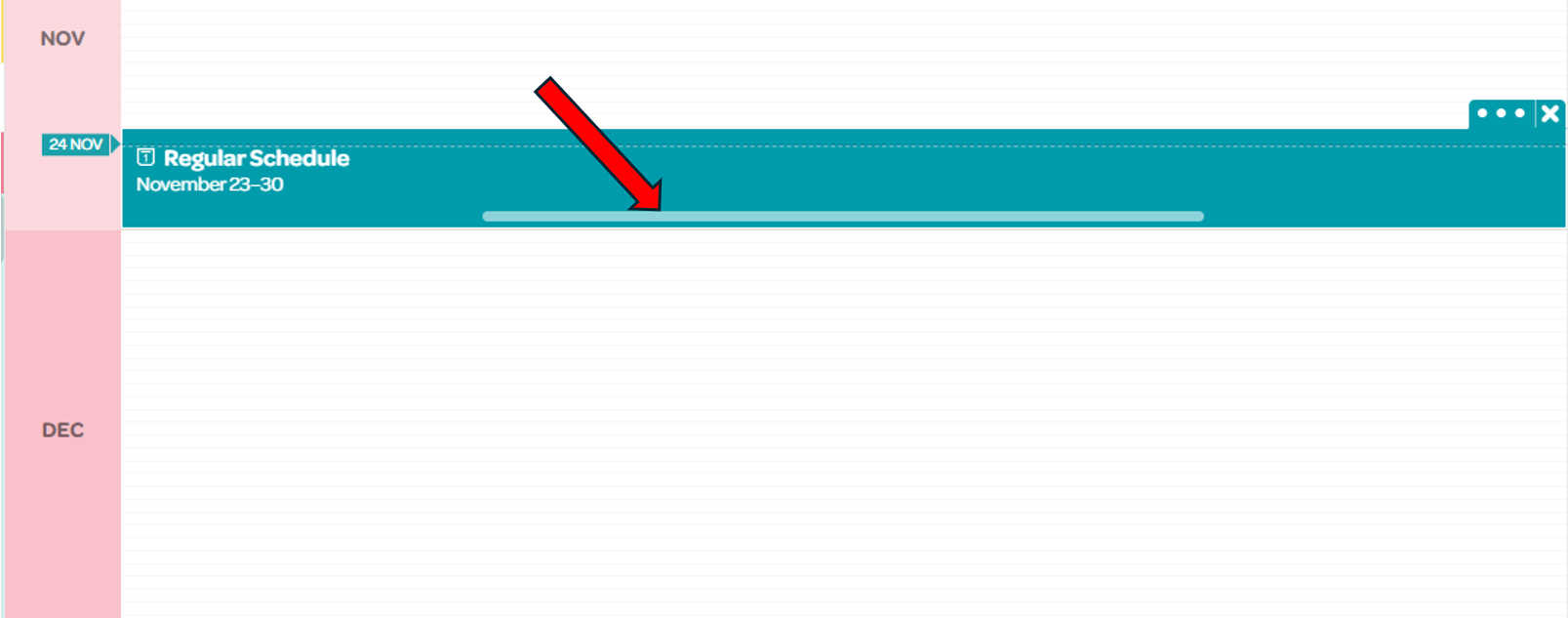
Or use the menu. Click the three-dot button at the top right of the block. It opens the Remove from Schedule and Edit Date Range options.
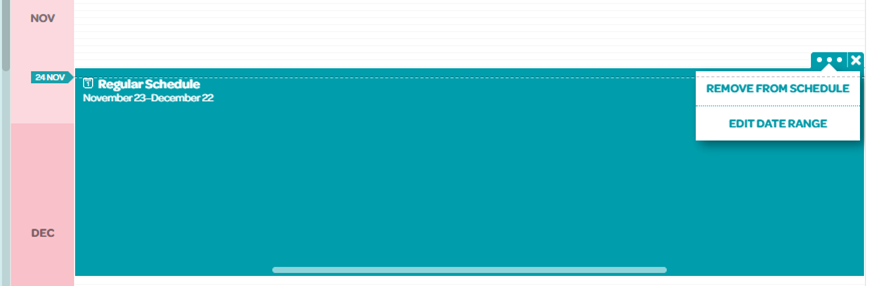
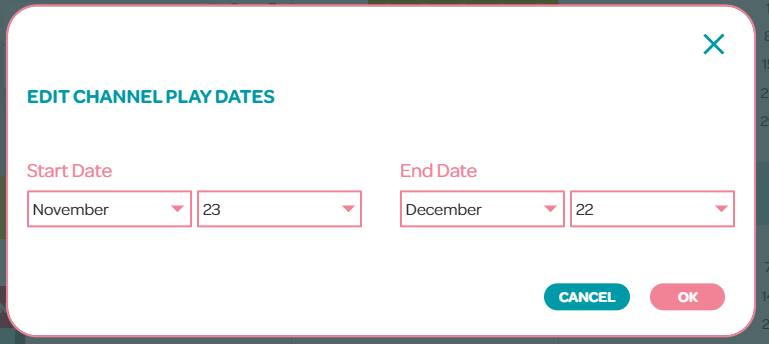
Edit Date Range opens the Edit Channel Play Dates window. Pick the month and day for the Start Date and the End Date, then click OK.
Editing in calendar view
Click a date range in the calendar to open its menu:
- Edit Date Range changes the start and end days of that range.
- Remove from Schedule deletes that range from the yearly schedule.
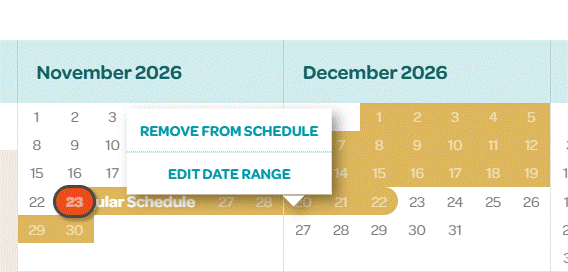
Edit Date Range opens the Edit Channel Play Dates window. Pick the month and day for the Start Date and the End Date, then click OK.
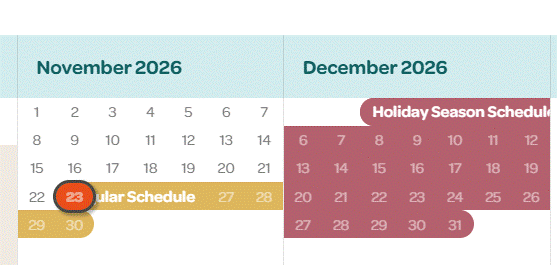
For example, a Regular Schedule dropped on November 23 fills November 23 to December 22. Edit its range to end on November 30, and you can then drop a Holiday Season Schedule on December 1 to cover the whole month.
Rename and play a yearly schedule
Rename: click the pen icon to the left of the schedule name at the top, type the new name and save.
Play: click the Play button at the top of the schedule, or the play button next to the schedule in the Yearly Schedules list.