
Campaigns are a flexible way to schedule playback of your messages. You can easily add or remove messages to your campaigns, and have them play at regular intervals, either by minutes or songs, or at specific time slots.
There are 3 way to create a new campaign:
- Click on the "New Campaign" button (top right corner)
- Click on the "New Campaign" title (top left corner)
- Drag and drop a message to an empty Campaign
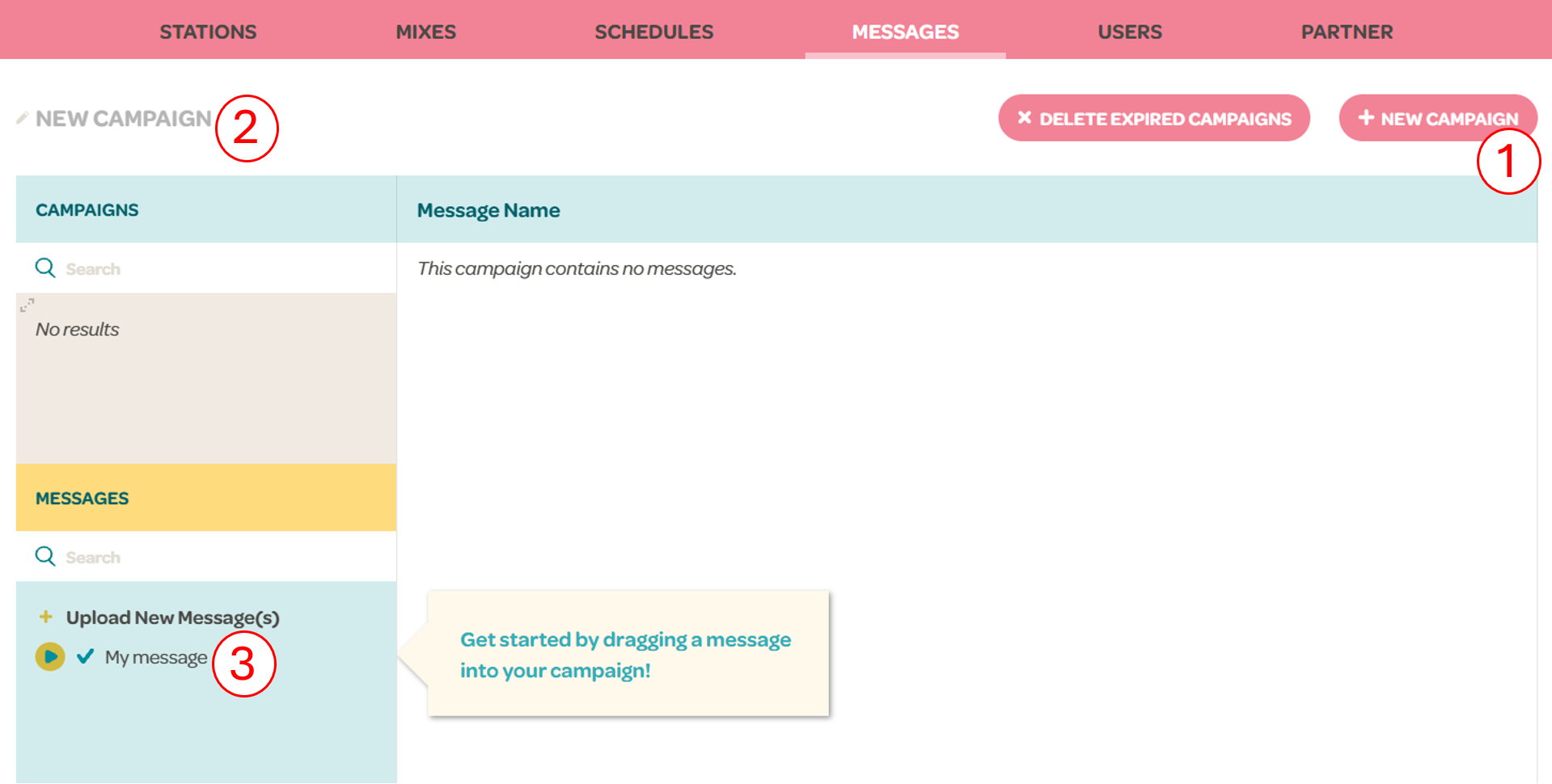
To add messages to the campaign, simply drag and drop the message in the campaign messages section. To delete a message, simply click the 'x' button to the right of the message.
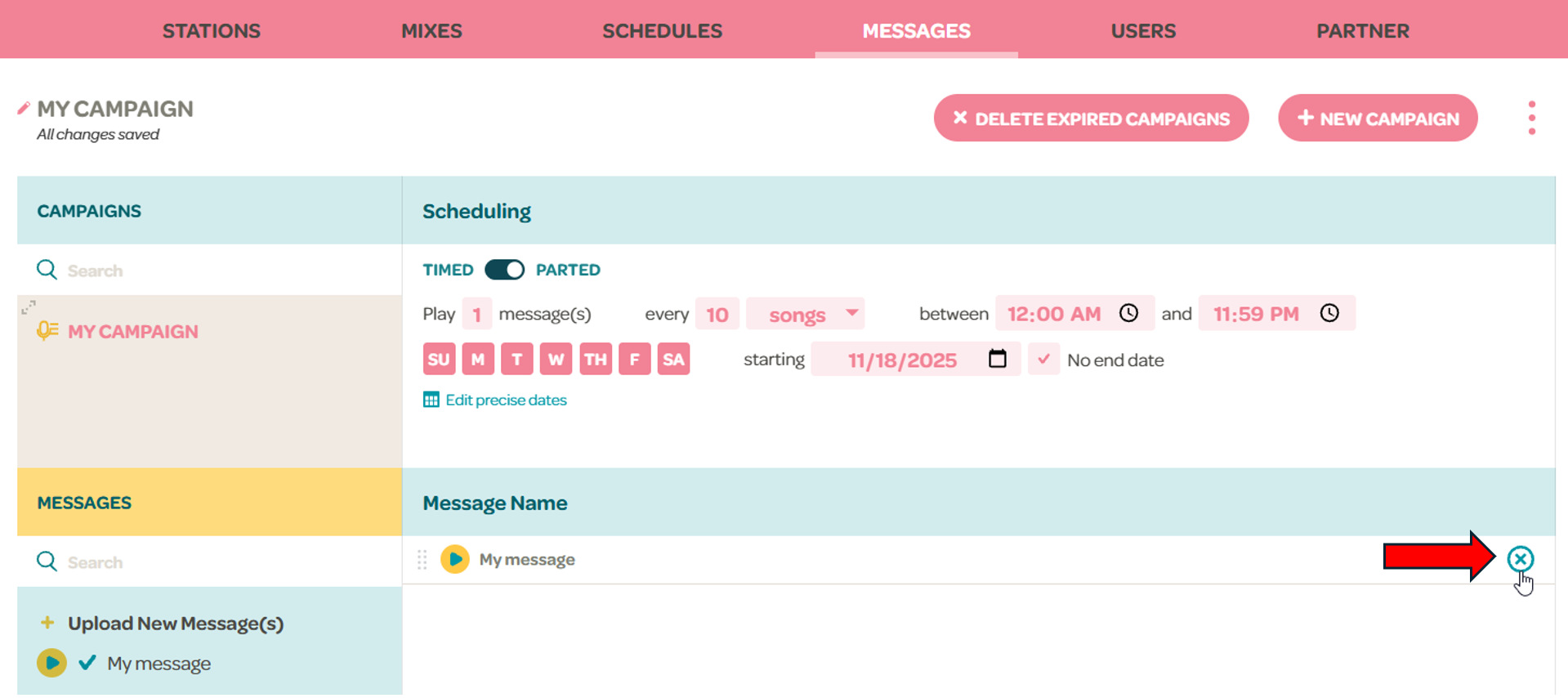
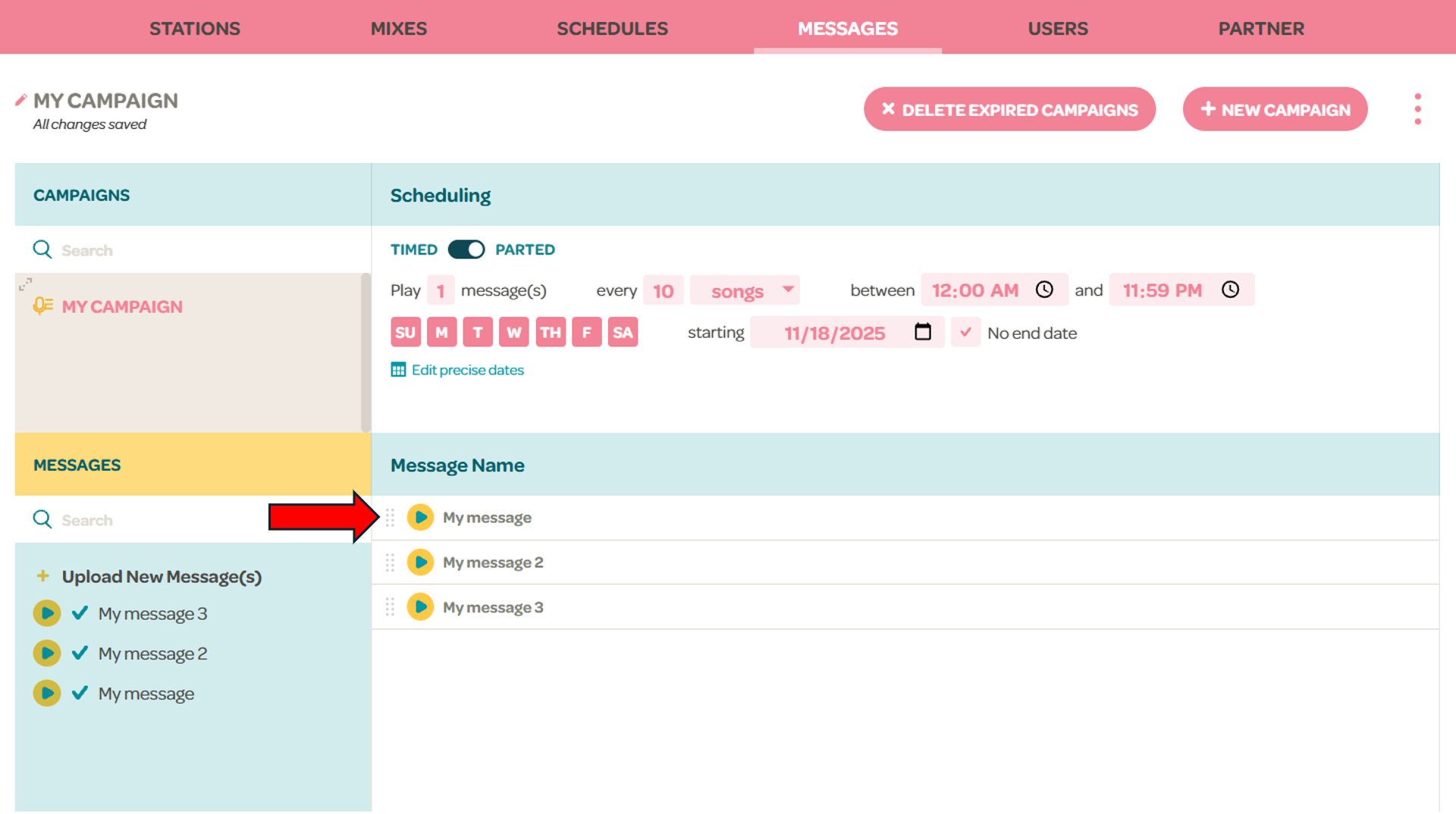
The messages will play in a cycle in order from top to bottom, and will remember the position of the last message played. For example, in a campaign that has 3 messages and plays 2 messages every 10 songs, after 10 songs, messages 1 and 2 will play, and after another 10 songs, message 3 and 1 will play because it cycled back.
You can rearrange the order of the messages by clicking the dots to the right of the message and dragging the message to the correct position.
When you create a new campaign, it will have some settings by default:
- It will play 1 message every 10 songs
- It will be active from 12 AM to 11:59 PM every day of the week
- The start date of the campaign is the same date it was created
- It has no end date
These settings can be adjusted to your preference at any point and will apply to any user that has the campaign assigned.
To assign a campaign:
- Go to the Users tab
- Click on a user
- Click the "Assign msg campaigns" button
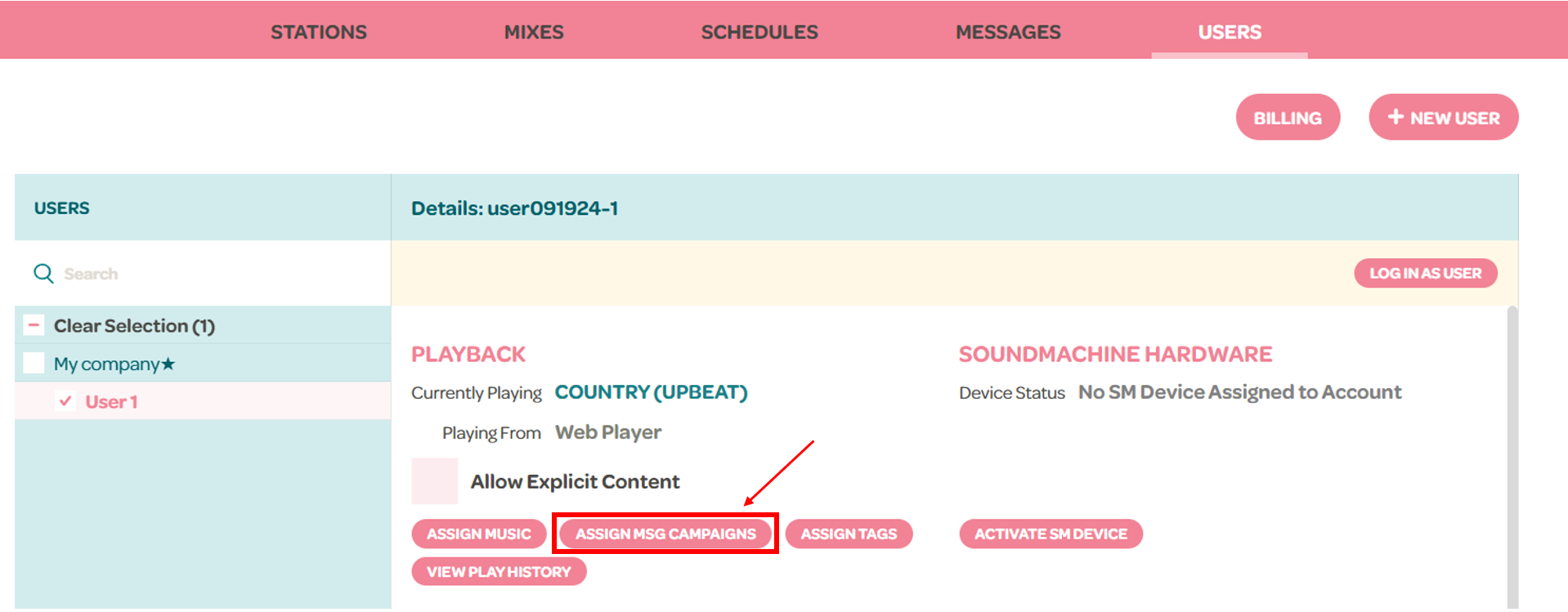
- Select the campaigns that you want active and click OK
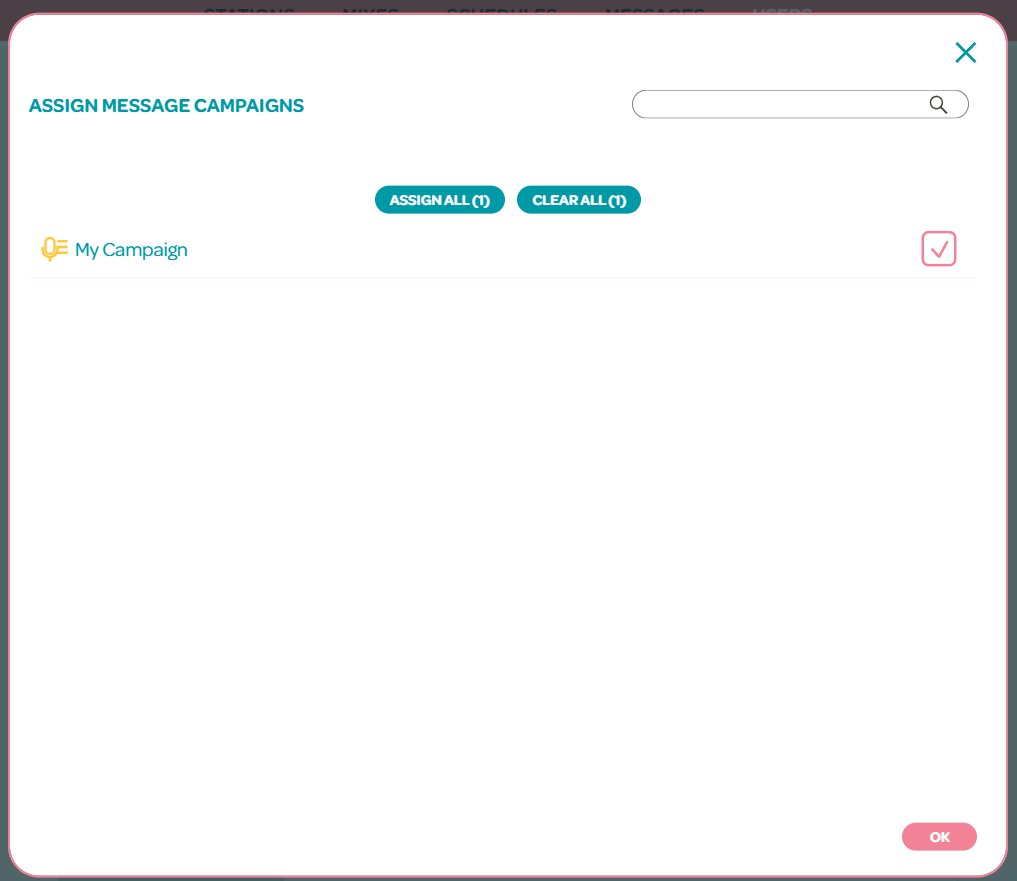
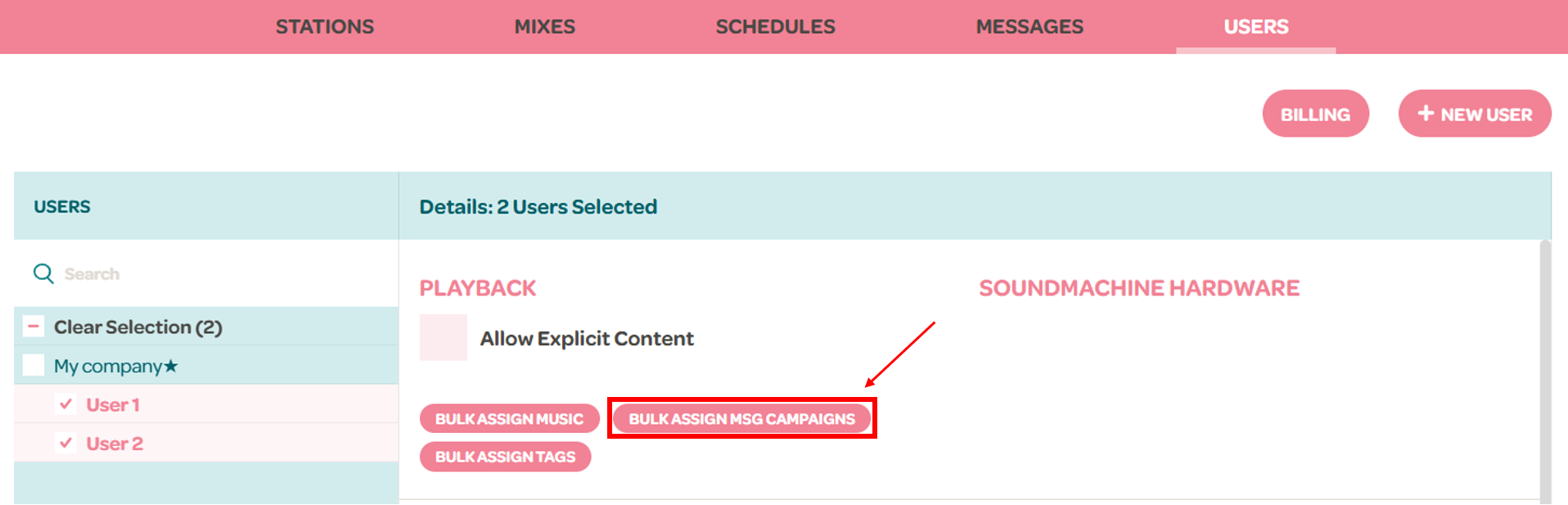
You can also bulk assign campaigns to multiple users by
- Holding the Shift key on your keyboard
- Selecting on multiple users
- and clicking on the "Bulk Assign msg campaigns" button
You can learn more about your campaign settings here:
Scheduling Campaign Playback (Parted)
Scheduling Campaign Playback (Timed)